This release is about seeing what really happened to your money, and getting things done with fewer taps. Here's what's new.
Pay Period Review
See how each pay period really went. Pluto compares the planned transactions a period started with to what actually happened, then walks you from one total to the other: what didn't happen, what came in higher, and what had no planned transaction behind it.
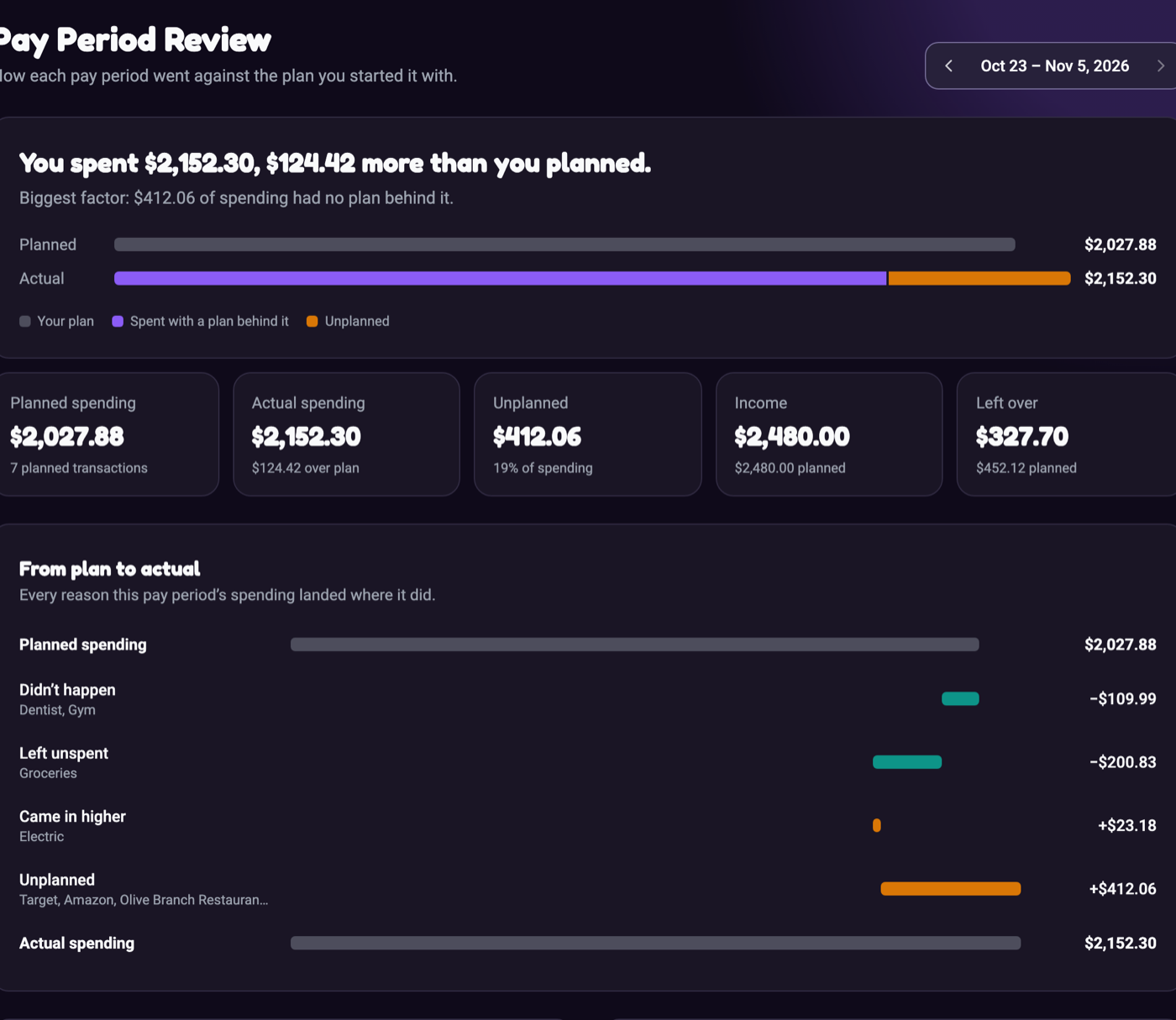
Find it in Explore. Pay Period Review is a Premium feature. How Pay Period Review works
Split a planned transaction
Some planned transactions are really several purchases, like a $400 grocery budget spent across a few stores. Take out each piece as you spend and Pluto keeps track of what's left, so Safe to Spend stays right.
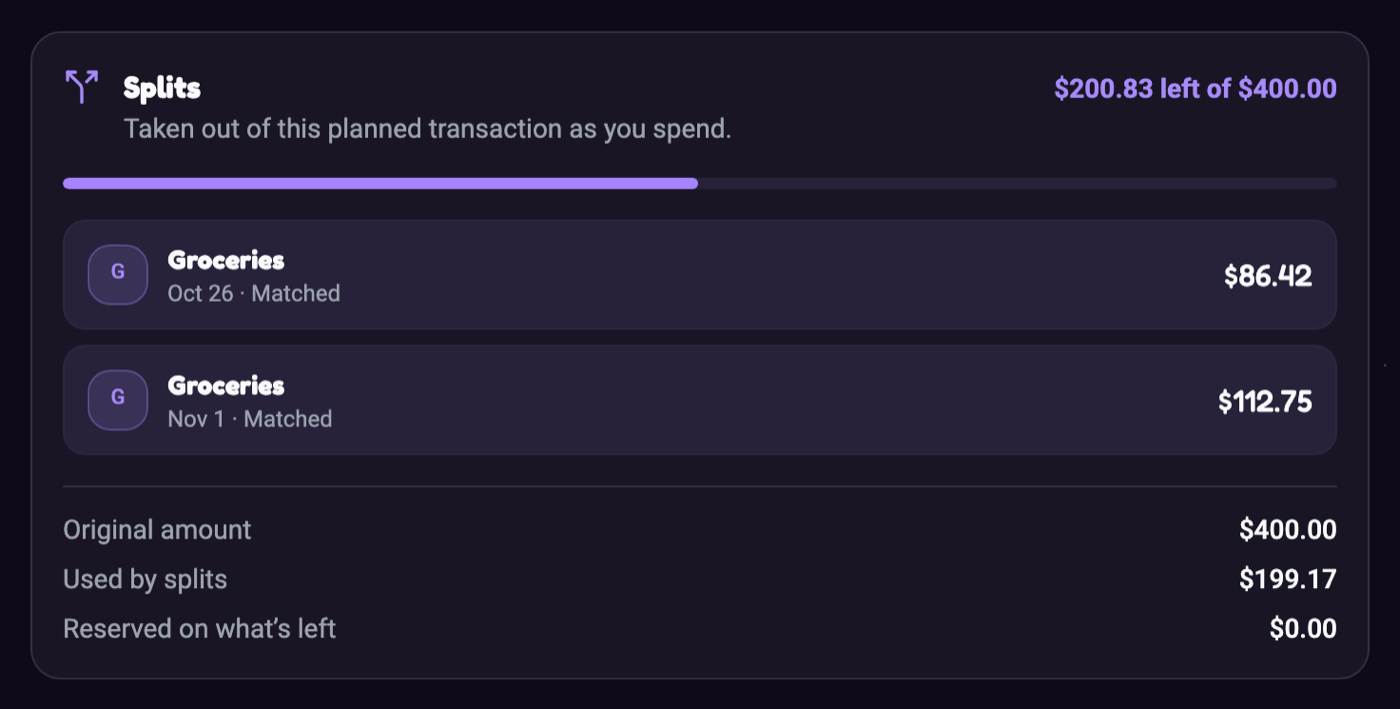
Open a planned expense and choose Split. More on splitting
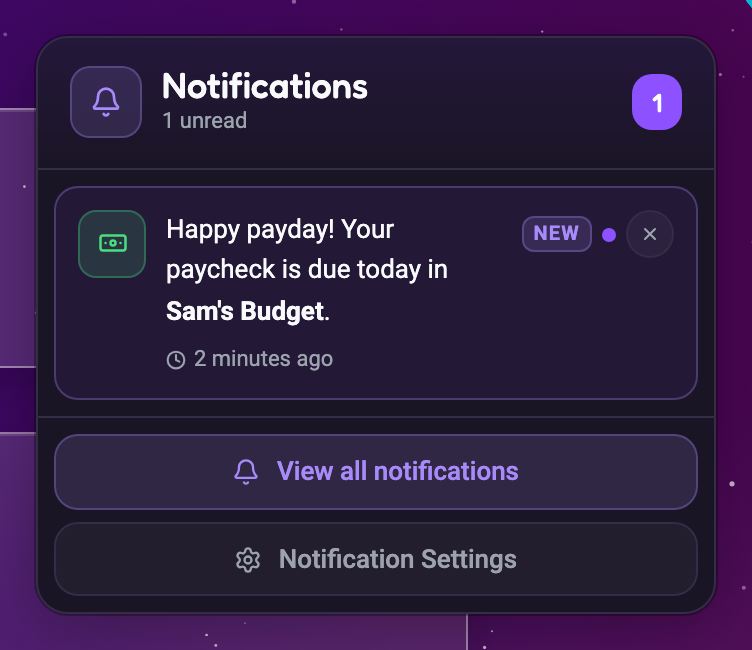
Happy payday!
On the day your main paycheck is due, Pluto sends a note to everyone in the workspace. It follows the paycheck set as Primary Income on your workspace's Overview.
Ask Sage, then tap to do it
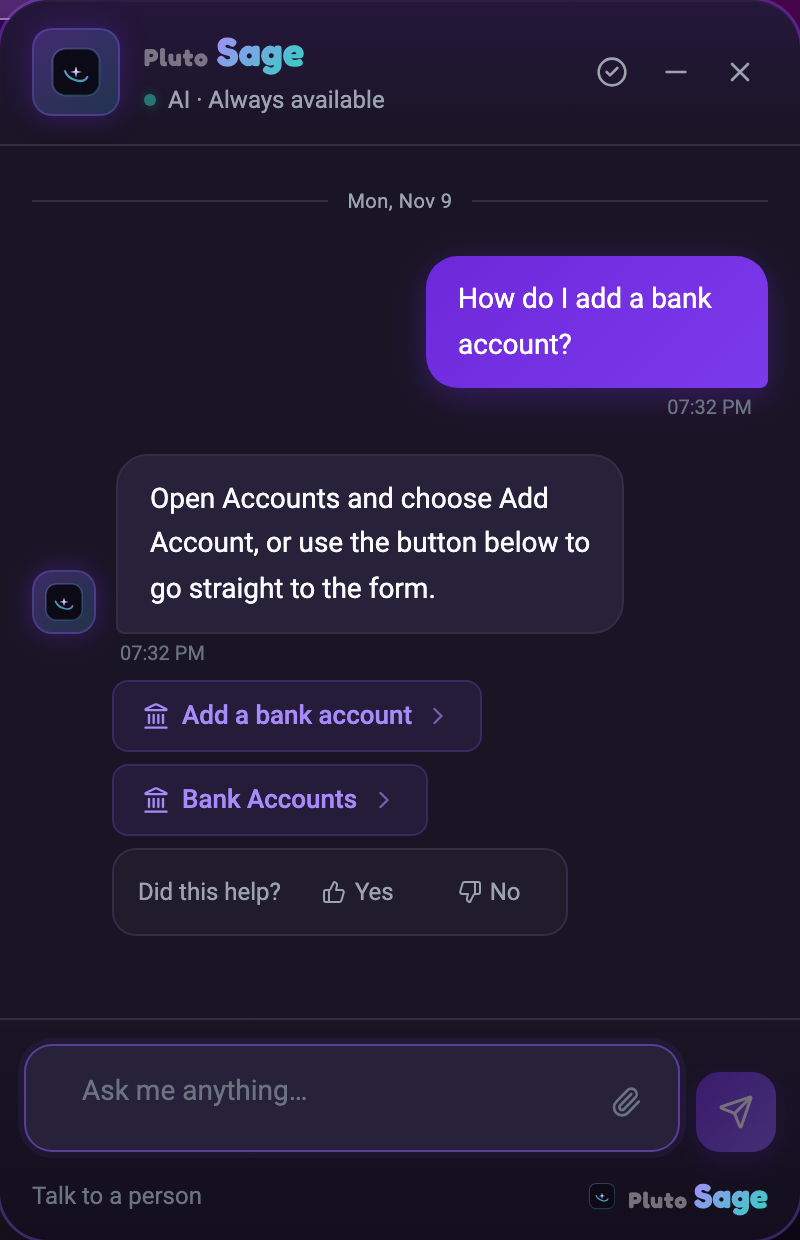
Ask Sage how to do something, and when your question names an action or a page, a button appears under the answer that takes you there. Sage only opens the page or form. You make the change yourself.
Add anything from search
Add a bank account, credit card, expense, income, loan, investment or property without leaving the page you're on. Open search, type "add" or a word like "mortgage" or "paycheck", and pick what you need.
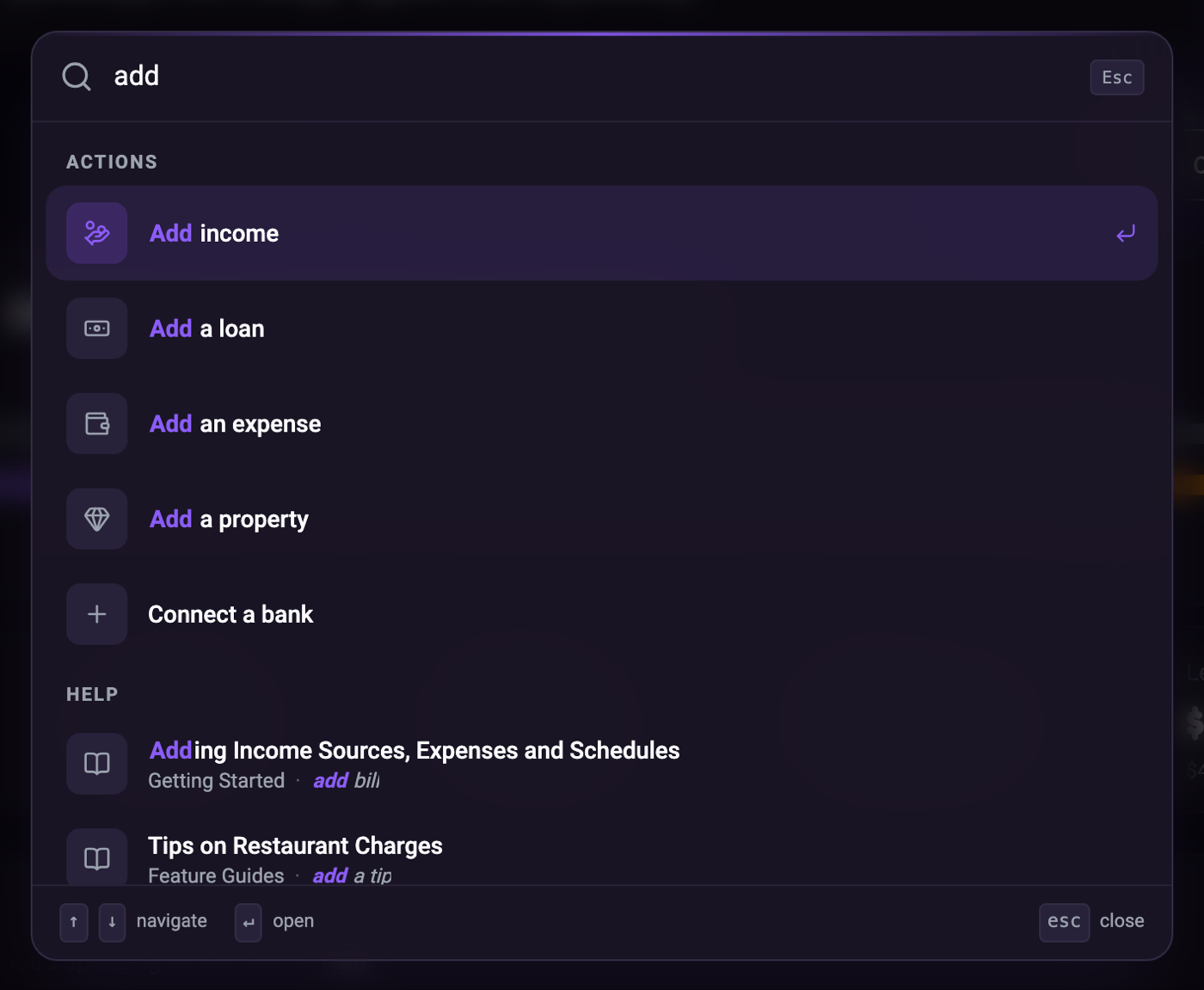
Searching Pluto with Spotlight
Tell us what you think
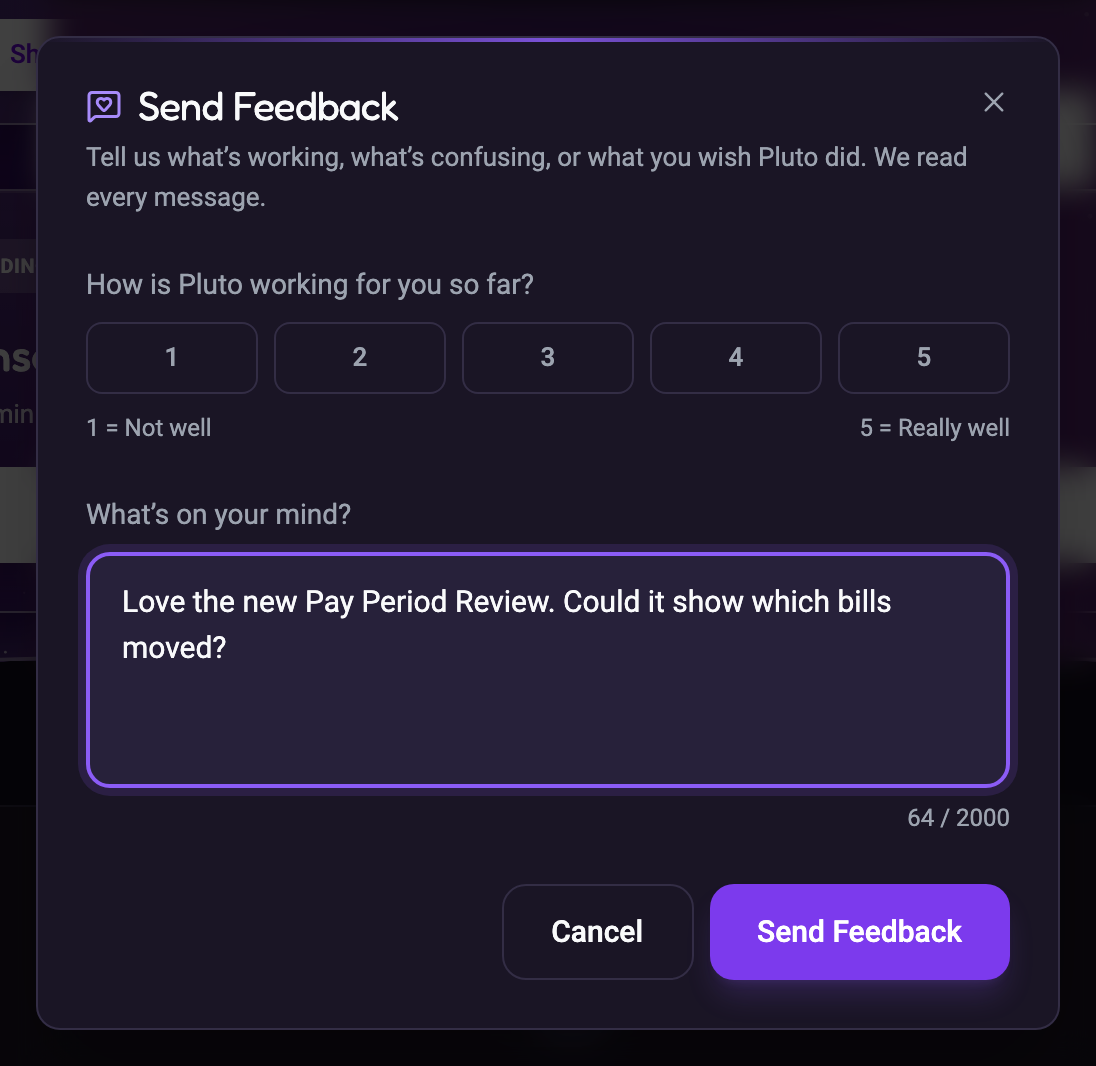
Give Pluto a rating, tell us what's working or what you wish it did, and we'll read it. Send Feedback is in your account menu on the web and your profile menu in the mobile app.
Also in this release
- Notifications you can tap. In the mobile app, tap a notification that pops up while you're using Pluto.
- Paychecks are no longer counted twice. When your bank shows a paycheck in your balance before the deposit syncs, Safe to Spend marks it Already in your balance.
- The right date in the evening. New entries no longer default to tomorrow's date.
- Sign up free no longer sends you back to sign-in.
All of it is ready the next time you open Pluto.